S5S SETUP SUPPORT
Set up your
screen in minutes.
Choose your device below for a step-by-step guide. Keep the login details supplied by S5S nearby; you will need them to sign in.
Most setups take about 5–10 minutes
 ONE GUIDEMANY SCREENS
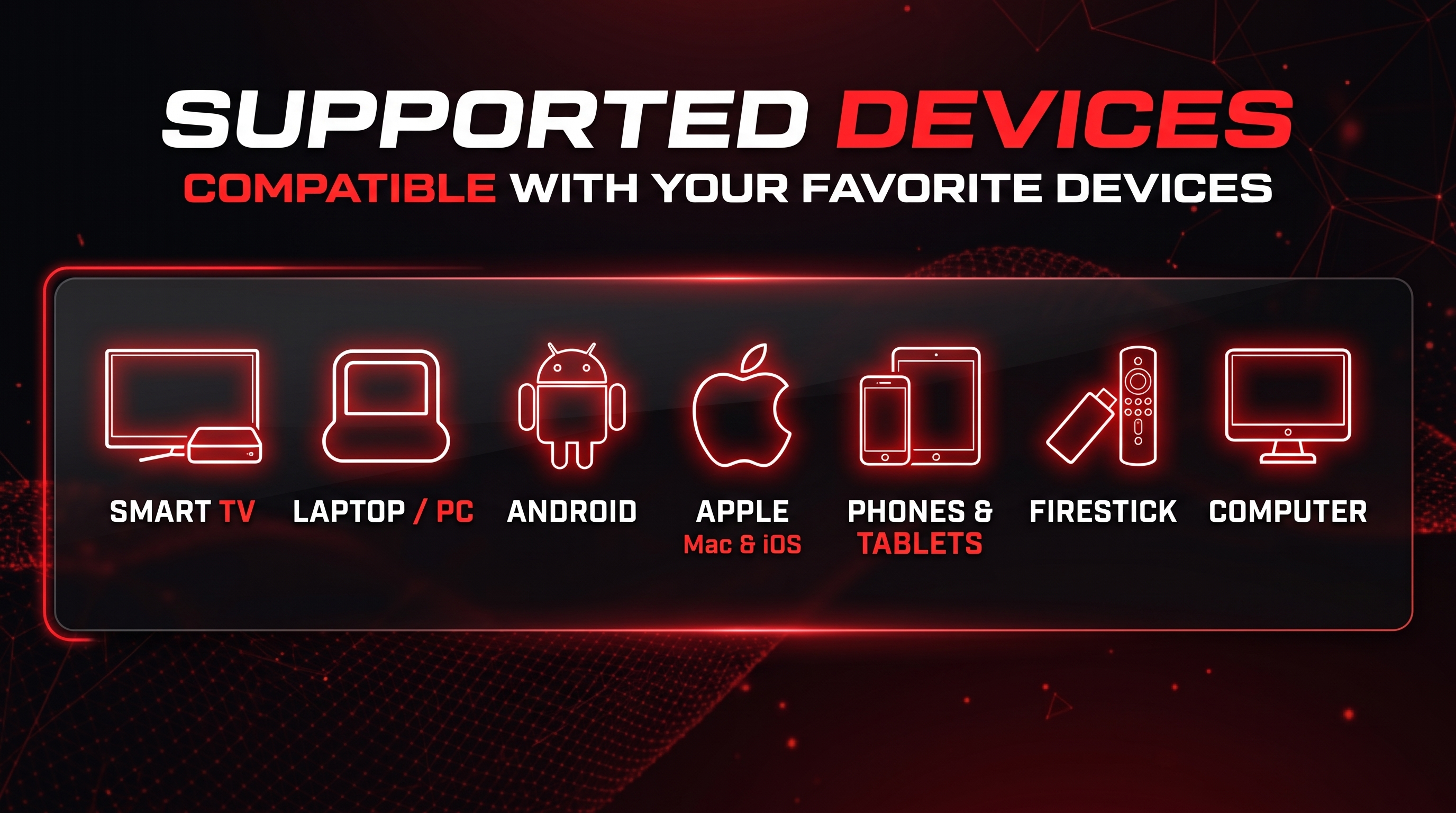
PICK YOUR DEVICE
Where will you watch?
Tap a device to jump to its setup steps.
Before you beginInstall a compatible IPTV player from your device’s official app store. Have your S5S username, password and server details ready.
STEP-BY-STEP HELP
Find your setup.
Menu names can vary slightly between devices and app versions.
015–10 MINFire TV & Fire TV Stick
Install a supported player from the Fire TV app store and sign in with your S5S details.
- 01
Open the app storeFrom the Fire TV home screen, search for a compatible IPTV player and install it.
- 02
Choose a sign-in methodOpen the player and select Xtream Codes API or the login option that matches the details supplied by S5S.
- 03
Enter your account detailsType the server URL, username and password exactly as provided. These details are case-sensitive.
- 04
Load your TV guideSave the account, wait for channels and the EPG to load, then open a channel to check playback.
025 MINAndroid TV & boxes
Works with supported Android TV devices, Google TV boxes and many streaming boxes.
- 01
Open Google PlaySearch for a compatible IPTV player and install it on your device.
- 02
Select account loginChoose Xtream Codes API or the playlist method supported by your player.
- 03
Add your S5S detailsEnter the server URL, username and password supplied by S5S.
- 04
Save and refreshSave the account and refresh the playlist if your channels do not appear straight away.
035–10 MINSamsung, LG & Smart TVs
Player availability depends on your TV model and region. Premium includes Hot Player or IBO Player activation.
- 01
Find a compatible playerOpen your TV’s app store and search for Hot Player, IBO Player or another supported IPTV player.
- 02
Note the device codeOpen the app and write down the Device ID or activation code shown on screen.
- 03
Request activation if neededIf you have Premium and the app asks for activation, send the code to S5S support on WhatsApp.
- 04
Add your playlistUse the player’s official portal or app and enter the S5S login details provided by S5S.
045 MINiPhone, iPad & Apple TV
Choose a player from the Apple App Store that supports your S5S sign-in method.
- 01
Install a compatible appSearch the App Store for an IPTV player with Xtream Codes API support.
- 02
Add a new accountOpen the app and choose Add User, Add Playlist or the equivalent option.
- 03
Enter your login detailsChoose Xtream Codes API, then enter the server URL, username and password from S5S.
- 04
Save your accountWait for the channel list and guide to load, then start watching.
053–5 MINAndroid phones & tablets
Use a compatible IPTV app from the Google Play Store.
- 01
Install a playerSearch Google Play for an IPTV player that accepts Xtream Codes API login.
- 02
Add your S5S accountOpen the player and select Add User or Add Playlist.
- 03
Enter the credentialsType the server URL, username and password supplied by S5S.
- 04
Load and enjoySave your account and refresh the playlist if the guide or channels take time to appear.
065–10 MINRoku devices
Roku app availability varies by model and region; contact S5S if you need help finding a compatible player.
- 01
Check the Roku Channel StoreLook for an IPTV player compatible with your Roku model and region.
- 02
Install and open the playerFollow the app’s on-screen prompts. If it displays a device code, keep it handy.
- 03
Use your S5S loginWhere supported, select Xtream Codes API and enter the account details sent by S5S.
- 04
Ask us if you get stuckMessage S5S support with your Roku model and the screen you are seeing.
075 MINWindows PC & Mac
Install a reputable player from its official website or app store.
- 01
Choose a desktop playerFind a player compatible with your operating system and S5S login details.
- 02
Open account setupSelect Login with Xtream Codes API or the option specified by your player.
- 03
Enter your account detailsAdd the server URL, username and password supplied by S5S.
- 04
Save and startSave the account, let the playlist load and select a channel or VOD title.
08VARIESFormuler, Dreamlink & BuzzTV
Many boxes include a built-in player. Options differ by model and software version.
- 01
Open the built-in TV playerStart MyTVOnline on Formuler, DOL on Dreamlink, or the player supplied with your box.
- 02
Add a portal or accountChoose Add Portal or XC API Login, depending on the device.
- 03
Enter your S5S credentialsUse the server URL, username and password sent with your activation details.
- 04
Connect and refreshSave the details and allow the channel list and TV guide to load.
QUICK FIXES
Something not loading?
Try these checks before setting up the app again.
01Check the connection
Confirm your device is online. A stable connection helps with HD and 4K playback.
02Recheck your login
Server URLs, usernames and passwords are case-sensitive. Compare each character with the activation details supplied by S5S.
03Refresh the player
Close and reopen the app. If available, refresh the playlist or TV guide.
04Restart your device
Restart your TV box and router, then try signing in again.
S5S SUPPORT
Need a hand with setup?
Send us your device model and a photo of the screen you’re on. We’ll help you work through the next step.
